Web Chat Widget Overview
The Freshdesk Web Chat Widget allows you to engage with users directly on your website and manage their queries in real time. The widget supports both anonymous and authenticated users and appears as an interactive chat interface on your web pages. Each new chat initiated through the widget is automatically created as a separate ticket in your Freshdesk inbox, enabling seamless tracking and support.
Setting Up the Widget
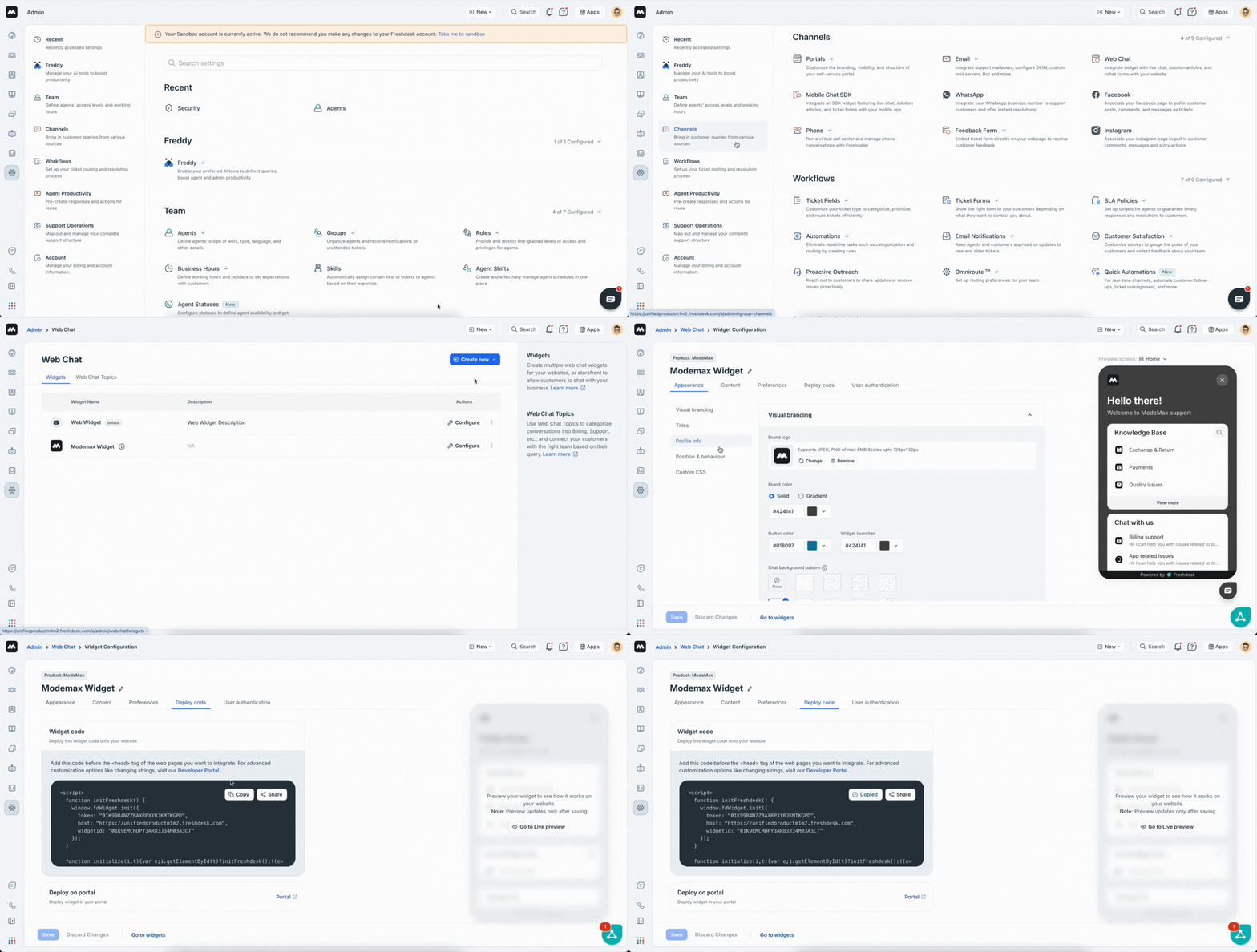
- Log in to your Freshdesk account with Admin privileges.
- Navigate to Admin Settings.
- Select Channels > Web Chat.
- You will be taken to the Web Widget list page. Create a new widget.
- This will take you to the Widget Configuration page.
- From the Deploy Code section, copy and embed the provided widget code snippet into your website's HTML to start chatting with your site visitors.
JWT User Authentication & User Identification
Freshdesk supports JSON Web Token (JWT) based authentication to help you securely identify users interacting with your Web Chat Widget. By enabling JWT authentication, you can ensure that only verified users are allowed to initiate conversations through your configured widgets.
Read more about it in detail - Link
How JWT Authentication Works
- Conversation Initiation: A user clicks the Web Chat Widget to start a conversation.
- Token Request: Freshdesk requests a signed JWT token containing user identity data (e.g., email, name).
- Chat Initialization: The chat widget initializes by passing the JWT token to Freshdesk.
- Token Verification: Freshdesk validates the token, extracts user details from the payload, and grants access to the chat session.
Deploying the Web Chat Widget
The Freshdesk Web Chat Widget can be integrated into different types of web applications and environments. This section outlines deployment approaches for common frameworks, user-specific configurations, authentication modes, and platform-level integrations.
Deploying for Visitors vs. Logged-in Users
The Web Chat Widget supports two user types:
Anonymous Visitors
- Default behavior when no user identity is provided.
- The chat shows a generic visitor profile.
- Conversations are logged as tickets without contact association unless the user provides details later.
Authenticated / Logged-in Users
- You can pass user metadata (e.g., name, email) during widget initialization.
- When JWT authentication is enabled, Freshdesk uses the verified token payload to map chats to user accounts.
- This enables richer context and a continuous conversation experience across devices.
JWT-Enforced vs. Non-Enforced Deployment
You can deploy the widget in either mode depending on your authentication requirements:
Implement with JWT Token (JWT enforced state)
- The widget requires a valid JWT token for initialization.
- Only authenticated users can start conversations.
- Ideal for logged-in experiences such as customer dashboards, account pages, or gated content.
After configuring JWT authentication in Freshdesk, include the generated JWT token in your widget initialization script as shown below.
1 2 3 4 5 6 7 8 9 10 11 12 | <script> function initFreshdesk() { window.fdWidget.init({ host: 'your_host_here', token: 'your_token_here', widgetId: 'your_widget_id_here', jwtAuthToken: 'yout_jwt_token_here' }); } function initialize(i,t){var e;i.getElementById(t)?initFreshdesk():((e=i.createElement("script")).id=t,e.async=!0,e.src="your_host_here/webchat/js/widget.js",e.onload=initFreshdesk,i.head.appendChild(e))}function initiateCall(){initialize(document,"Freshdesk-js-sdk")}window.addEventListener?window.addEventListener("load",initiateCall,!1):window.attachEvent("load",initiateCall,!1); </script> |
Implement without JWT Token (JWT Non-Enforced state)
- JWT is optional and the widget loads for all visitors.
- If a token is provided, it is used. Otherwise, the user is treated as a guest.
- Suitable for marketing sites and public web pages.
1 2 3 4 5 6 7 8 9 10 11 | <script> function initFreshdesk() { window.fdWidget.init({ host: 'your_host_here', token: 'your_token_here', widgetId: 'your_widget_id_here', }); } function initialize(i,t){var e;i.getElementById(t)?initFreshdesk():((e=i.createElement("script")).id=t,e.async=!0,e.src="your_host_here/webchat/js/widget.js",e.onload=initFreshdesk,i.head.appendChild(e))}function initiateCall(){initialize(document,"Freshdesk-js-sdk")}window.addEventListener?window.addEventListener("load",initiateCall,!1):window.attachEvent("load",initiateCall,!1); </script> |
Integrate with Freshdesk Customer Portal
For Freshdesk Customer Portals, adding the Web Chat Widget does not require code.
You can enable it directly using the UI toggle available in the Customer Portal settings:
Admin → Channels → Web Widget → Deploy Code → Deploy on portal
Once toggled on, the widget automatically appears on your portal pages.
Multi-brand or Multi-product usecase
Freshdesk allows you to deploy multiple chat widgets across different websites or pages while still managing all customer interactions within the same account. This is particularly useful for multi-brand businesses, multi-site commerce setups, or teams that want to customize the chat experience per site.
Important Note for Legacy Users
If you're familiar with the older siteID based implementation, it is now recommended to use the Multi-Product Widget approach instead. This provides far more flexibility and better separation of user chats across different products. And all of this is managed automatically by the Freshdesk product via JWT token.
1. Using Multiple Products (Separate Chats per Website)
If your business operates multiple brands or websites but uses the same Freshdesk account and support team, you can create multiple products within your Freshdesk workspace.
- Widget configuration
- Branding
- Pre-chat form
- Topic flows
- FAQs (if configured)
How This Works
- Each widget is linked to a specific product.
- Users interacting with different product-linked widgets are considered the same user (same email, name, etc.).
- Chats remain isolated per product.
This means a user chatting on Website A will have a separate conversation thread from the one they initiate on Website B.
Example
- Brand A website → Starts a chat using a topic called Refunds
- Brand B website → Starts a chat using a topic called Order Status
Both conversations are treated independently, each tied to the product the widget belongs to.
This helps support teams manage multi-brand conversations without mixing contexts.
2. Using Multiple Widgets Under the Same Product (Chat persists Across Pages)
If your primary goal is to change branding or appearance across different pages—but you do not want separate chats—Freshdesk allows you to create multiple widgets linked to the same product.
How This Works
- Each widget can have its own branding, colors, or launcher configuration.
- The same chat session persists across pages and widgets.
- User history remains unified.
- No separation of conversations occurs.
Ideal For
- Large websites with multiple sections (e.g., marketing site, help center, pricing page)
- Multi-theme pages requiring different styling
- Product pages that need contextual widget branding but one unified chat history
Showing Different Topics and FAQs on Different Pages
Freshdesk allows you to tailor the chat experience for different sections of your website by configuring multiple widgets—each with its own set of Topics and FAQ categories.
How It Works
- A custom set of Topics
- A selective set of FAQ categories
Each widget receives its own configuration, allowing you to surface the most relevant content based on the page or user context.
Example Use Cases
- Product Pages: Show Topics like "Product Questions" and FAQs related to product details.
- Checkout or Payments Page: Display Topics such as "Order Issues", "Refunds", and FAQs related to billing.
Important Note for Legacy Users
Tag based filtering is not supported now for web chat widget hence it is advised to use separate widgets with customised content to achieve the same outcome.
Multilingual Configuration
Freshdesk provides built-in multilingual support for the Web Chat Widget. When enabled, the widget automatically detects the end user's browser language and displays the UI in the corresponding supported language—no additional configuration required.
If the user's browser language is not supported, the widget falls back to the account's primary language by default.
Supported Languages
The table below lists all supported languages along with their corresponding language codes. These codes can be used for custom overrides or for manually setting a widget language (if needed).
| Language | Code | Language | Code |
|---|---|---|---|
| Arabic | ar | Japanese | ja |
| Bosnian | bs | Korean | ko |
| Bulgarian | bg | Latvian | lv |
| Catalan | ca | Lithuanian | lt |
| Chinese (Simplified) | zh | Malay | ms |
| Chinese (Traditional) | zh-TW | Norwegian | no |
| Czech | cs | Polish | pl |
| Danish | da | Portuguese (Portugal) | pt-PT |
| Dutch | nl | Romanian | ro |
| English | en | Russian | ru |
| Estonian | et | Serbian | sr |
| Filipino | tl | Slovak | sk |
| Finnish | fi | Slovenian | sl |
| French | fr | Spanish (Latin America) | es-LA |
| Greek | el | Swedish | sv |
| Hebrew | he | Thai | th |
| Hungarian | hu | Turkish | tr |
| Icelandic | is | Ukrainian | uk |
| Indonesian | id | Vietnamese | vi |
| Italian | it |
Language Selection Priority
The Web Chat Widget determines the display language based on a predefined priority sequence. Freshdesk evaluates the following sources in order and uses the first available valid language.
1. Configured Language (Highest Priority)
You can explicitly set the widget's language during initialization using the locale property.
1 2 3 4 5 6 7 8 9 10 11 12 13 14 | <script> function initFreshdesk() { window.fdWidget.init({ host: 'your_host_here', token: 'your_token_here', widgetId: 'your_widget_id_here', contactProperties: { language: 'fr', }, }); } function initialize(i,t){var e;i.getElementById(t)?initFreshdesk():((e=i.createElement("script")).id=t,e.async=!0,e.src="https://your_host_here/webchat/js/widget.js",e.onload=initFreshdesk,i.head.appendChild(e))}function initiateCall(){initialize(document,"Freshdesk-js-sdk")}window.addEventListener?window.addEventListener("load",initiateCall,!1):window.attachEvent("load",initiateCall,!1); </script> |
Use this when you want direct control over the widget's language (e.g., your app's language setting, server-side locale detection, or route-based language selection).
2. Browser Language
If a configured language is not provided, the widget automatically detects the browser's primary language.
3. Operating System Language
If both configured language and browser language checks fail, Freshdesk falls back to the OS language reported by the device.
4. Default Language (Lowest Priority)
If none of the above values are available or supported, the widget loads using the Default Language configured in your Freshdesk account.
This acts as the final fallback option.
If you want the Freshdesk widget's language to change dynamically based on the user's selection (for example, from a language dropdown), you must update the locale each time the dropdown value changes. This can be done using the following script:
1 2 3 4 5 6 7 8 9 10 11 12 13 14 15 16 17 18 19 20 21 22 23 24 25 26 27 28 29 30 31 32 33 34 35 36 37 38 39 | <b> Choose language </b> <select id = "myLang" onchange = "myLang()"> <option> ---Languages-- </option> <option selected> en </option> <option> de </option> <option> es </option> <option> ar </option> </select> <script> var lang_selected; const initConfig = { token: "your_token_here", host: "your_host_here", widgetId: "your_widget_id_here", }; function myLang(){ lang_selected = document.getElementById("myLang").value; window.fdWidget.reInit({ ...initConfig, contactProperties: { language: lang_selected } }); } function initFreshdesk() { window.fdWidget.init({ ...initConfig, contactProperties: { language: document.getElementById("myLang").value } }); } function initialize(i,t){var e;i.getElementById(t)?initFreshdesk():((e=i.createElement("script")).id=t,e.async=!0,e.src="your_host_here/webchat/js/widget.js",e.onload=initFreshdesk,i.head.appendChild(e))}function initiateCall(){initialize(document,"Freshdesk-js-sdk")}window.addEventListener?window.addEventListener("load",initiateCall,!1):window.attachEvent("load",initiateCall,!1); </script> |
Tracking Custom Events
Freshdesk allows you to track any events performed by your users — from updating a profile picture to adding items to a cart. These events can be used as context when engaging with users and can also trigger messages, build user segments, or power marketing campaigns.
Custom events consist of an event name (e.g., "Added to cart", "Downloaded white paper") and a set of event properties (e.g., email, product name, price, return date). These properties help you analyze user actions through segments, marketing journeys, or the activity timeline.
Sample code snippet
1 2 3 4 5 6 7 | window.fdWidget.track("Added to cart", { "email": "david.thompson@sample.com", "price": 100.21, "currency": "USD", "is_mobile_transaction": true, "return date": "2019-12-30" }); |
Troubleshooting the Error codes on the Widget
The Web Chat Widget integrates with multiple backend services, and errors may originate from account issues, backend validations, or frontend/network failures. Each error returned by the APIs includes an error code that helps admins and developers identify the root cause.
Admins should refer to the error code reference table to determine the appropriate corrective actions.
| Error Code | Meaning | Recommended Action |
|---|---|---|
| 2001 | ACCOUNT_NOT_FOUND | Account does not exist in the system. Verify the Freshdesk domain used in widget configuration. Ensure the account hasn't been removed or renamed. |
| 2002 | ACCOUNT_DELETED | The account has been deleted. Contact Freshdesk support or your admin to restore or validate the account. |
| 2003 | ACCOUNT_SUSPENDED | Account is in a suspended state. Check billing status or contact the account admin to reinstate access. |
| 2004 | ACCOUNT_INVALID | Account is in an invalid/unsupported state. Reach out to Freshdesk support to verify account health and configuration. |
| 1001 | RESOURCE_DOES_NOT_EXIST | Requested resource (e.g., widget, form, article) does not exist. Validate IDs such as widgetId, ticket form IDs, or object references in your integration. |
| 1002 | CS_TRANSFORM_ERROR | Server failed while transforming entities internally. Retry the request. If persistent, capture request payload and report to support. |
| 1003 | VALIDATION_FAILED | Input validation failed at backend. Check request payload for missing or invalid fields—especially in ticket creation or user updates. |
| 1004 | ACCESS_DENIED | User or widget does not have permission to access this resource. Ensure the API token, user permissions, and widget authentication are correct. |
| 1005 | TOKEN_ALIAS_MISMATCH | Token alias used does not match expected configuration. Regenerate or verify the widget token and ensure correct domain mapping. |
| 1006 | JWT_TOKEN_INVALID | Provided JWT token is invalid. Re-generate the visitor JWT using correct secret and payload rules. |
| 1007 | JWT_TOKEN_VISITOR_MISMATCH | JWT does not match the expected visitor identity. Recreate the JWT with correct visitor details before initializing the widget. |
| 1008 | CONTACT_VALIDATION_EXCEPTION | Contact data failed validation. Ensure valid email, phone or identifiers while creating/fetching a user. |
| 3001 | MESSAGE_API_ERROR | Helpkit backend operation failed. Retry. If the error persists, reach out to support with API logs. |
| 3002 | CONFIG_API_ERROR | Admin Nexus backend failure. Retry and escalate to Freshdesk support if repeatable. |
| 4001 | UNIFIED_CONTACT_RECORD_ERROR | UCR platform dependency failure. Retry after some time. If continuous, share logs with support. |
| 9999 | UNKNOWN_ERROR | Unexpected/unmapped backend failure. Retry the request. If consistent, capture request + response and escalate to support. |
| F101 | Frontend/Network Failure | Browser, network, or frontend script issue; API call failed on frontend. Check network connectivity, browser console errors, ad-blockers, CSP restrictions, or widget script loading issues. Reload page and retry. |
Web Chat Widget Events & API Methods
The Freshdesk Web Chat Widget emits a set of client-side events that you can subscribe to in order to track user actions, widget behavior, and message activity. These events allow you to build richer analytics, trigger custom logic, or integrate the widget more tightly with your application.
Widget Events
Below is the list of all supported events along with their descriptions and code examples.
| Event Name | Description |
|---|---|
| widget:opened | Triggered when the widget is opened via the launcher. |
| widget:closed | Triggered when the widget is closed. |
| widget:loaded | Triggered when the widget finishes loading on page load. |
| user:created | Triggered when a user is created after sending their first message (topic-based). |
| unreadCount:notify | Triggered for every incoming message; shares the total unread message count. |
| message:sent | Triggered when a user sends a message. |
| message:received | Triggered when a message is received by the user. |
| widget:destroyed | Triggered when the widget is destroyed via the destroy method. |
| download:file | Triggered when the user downloads a file sent inside the widget. |
| user:cleared | Triggered when the user is cleared via the user.clear() API. |
| dialog:opened | Triggered when a teaser/dialog message is opened. |
| dialog:closed | Triggered when a teaser/dialog message is closed. |
| ticket:resolved | Triggered when the associated ticket is resolved. |
Sample Event Subscriptions
Below are examples showing how to listen to each event.
1 2 3 4 5 6 7 8 9 10 11 12 13 14 15 16 17 18 19 20 21 22 23 24 25 26 27 28 29 30 31 32 33 34 35 36 37 38 39 40 41 42 43 44 45 46 47 48 49 50 51 52 53 54 55 56 57 58 | // Widget lifecycle events window.fdWidget.on("widget:opened", () => { console.log("Widget opened"); }); window.fdWidget.on("widget:closed", () => { console.log("Widget closed"); }); window.fdWidget.on("widget:loaded", () => { console.log("Widget loaded"); }); // User lifecycle events window.fdWidget.on("user:created", (data) => { console.log("User created:", data); }); window.fdWidget.on("user:cleared", () => { console.log("User cleared"); }); // Message events window.fdWidget.on("message:sent", (message) => { console.log("Message sent:", message); }); window.fdWidget.on("message:received", (message) => { console.log("Message received:", message); }); window.fdWidget.on("unreadCount:notify", (count) => { console.log("Unread messages:", count); }); // Dialog events (teaser messages) window.fdWidget.on("dialog:opened", () => { console.log("Teaser dialog opened"); }); window.fdWidget.on("dialog:closed", () => { console.log("Teaser dialog closed"); }); // File download event window.fdWidget.on("download:file", (file) => { console.log("File downloaded:", file); }); // Ticket resolution window.fdWidget.on("ticket:resolved", (ticket) => { console.log("Ticket resolved:", ticket); }); // Widget destroy window.fdWidget.on("widget:destroyed", () => { console.log("Widget destroyed"); }); |
Sample Responses for Widget Commands
Response Structure
| Property | Type | Description |
|---|---|---|
| success | Boolean | true = 200 success, false = any non-200 error |
| status | Var |
200 – Success 400 – Backend Error 401 – Init not called 403 – ExternalId already used (use user.clear()) 404 – Init not called / Invalid restoreId |
| data | Object |
When status = 200: • undefined → user not created yet When non-200: • Contains error details |
Widget API methods
The Freshdesk Web Chat Widget exposes a set of APIs that allow you to control widget behavior, manage user state, track events, and customize runtime configurations. These methods can be invoked through the global window.fdWidget object.
Widget Events
| Method | Description |
|---|---|
window.fdWidget.isOpen() | Returns whether the widget is currently open. |
window.fdWidget.open(payload) | Opens the widget. Optionally accepts a payload to open the widget directly inside a specific topic. |
window.fdWidget.close() | Closes the widget if it is open. |
window.fdWidget.isInitialized() | Returns whether the widget has been initialized. |
window.fdWidget.isLoaded() | Returns whether the widget assets have fully loaded. |
window.fdWidget.destroy() | Destroys the widget instance and clears widget-level cache. The user session is reset but user identity persists. |
window.fdWidget.hide() | Completely hides the widget launcher (prevents it from appearing even momentarily). |
window.fdWidget.show() | Shows the widget launcher if it was previously hidden. |
window.fdWidget.track(eventName, props) | Tracks a custom event from the widget. |
window.fdWidget.reInit() | Reinitializes the widget without destroying the existing instance (useful when updating config or reloading user state). |
User API methods
User Management APIs
Sample code snippet for setting user properties:
1 2 3 4 5 6 7 8 9 10 11 12 13 14 15 16 17 18 19 20 21 22 23 | <script> function initFreshdesk() { window.fdWidget.init({ host: 'your_host_here', token: 'your_token_here', widgetId: 'your_widget_id_here', contactProperties: { email: 'user@example.com', name: 'John Doe', mobile: '1234567890', phone: '123456', job_title: 'Software Engineer', address: 'City, Country', unique_external_id: '1234567890', language: 'en', state: 'State', // Custom field pincode: 123456, // Custom field }, }); } function initialize(i,t){var e;i.getElementById(t)?initFreshdesk():((e=i.createElement("script")).id=t,e.async=!0,e.src="https://your_host_here/webchat/js/widget.js",e.onload=initFreshdesk,i.head.appendChild(e))}function initiateCall(){initialize(document,"Freshdesk-js-sdk")}window.addEventListener?window.addEventListener("load",initiateCall,!1):window.attachEvent("load",initiateCall,!1); </script> |
| Method | Description |
|---|---|
window.fdWidget.user.get() | Returns user information for the current session. |
window.fdWidget.user.create(payload, callback) | Creates a new user if one does not already exist. Callback receives standard response object. |
window.fdWidget.user.update(payload) | Updates user details (name, email, phone, etc.). |
window.fdWidget.user.clear() | Clears the user record associated with the widget. |
window.fdWidget.user.isExists() | Returns whether a user identity is already present. |
Ticket Management APIs
Sample code snippet for setting ticket properties:
1 2 3 4 5 6 7 8 9 10 11 12 13 14 15 16 17 | <script> function initFreshdesk() { window.fdWidget.init({ host: 'your_host_here', token: 'your_token_here', widgetId: 'your_widget_id_here', ticketProperties: { subject: 'Product Enquiry', priority: 4, type: 'Question', cf_project: 'Red', // Custom field }, }); } function initialize(i,t){var e;i.getElementById(t)?initFreshdesk():((e=i.createElement("script")).id=t,e.async=!0,e.src="https://your_host_here/webchat/js/widget.js",e.onload=initFreshdesk,i.head.appendChild(e))}function initiateCall(){initialize(document,"Freshdesk-js-sdk")}window.addEventListener?window.addEventListener("load",initiateCall,!1):window.attachEvent("load",initiateCall,!1); </script> |
| Method | Description |
|---|---|
window.fdWidget.ticket.setProperties(payload) | Sets ticket-level properties at the time of ticket creation. |
Advanced Widget Customizations
Once you complete the initial widget configuration in the Freshdesk Admin settings, you can extend the Web Chat Widget with a range of advanced customizations. These options allow you to tailor the chat experience to match your brand, capture additional information, and refine the overall UI behavior.
Widget content customization
Customizing the Widget Launcher
The Freshdesk Web Chat Widget launcher can be completely hidden when you want full control over how the widget is triggered on your website. Instead of relying on the default launcher, you can choose to open the widget from any custom CTA—such as a button, menu item, floating action icon, or any other interactive element on your webpage.
- Automatically and immediately when the webpage finishes loading
- After a specified delay, helping you target users who may be idle or need assistance.
This flexibility allows the Web Chat Widget to feel native to your site's experience while still offering powerful support functionality.
Launch the widget from a custom CTA and hide the default launcher
You can completely hide Freshdesk's default launcher so the widget does not appear at all on page load. This allows you to launch the chat widget only through your own UI elements.
1 2 3 4 5 6 7 8 9 10 11 12 13 14 15 16 17 18 19 20 21 22 23 24 25 26 | <Button onClick="openChat()">Open Chat</Button> <script> function initFreshdesk() { window.fdWidget.init({ host: 'your_host_here', token: 'your_token_here', widgetId: 'your_widget_id_here', config: { headerProperty: { hideChatButton: true, } } }); } function openChat() { if (window.fdWidget && typeof window.fdWidget.open === 'function') { window.fdWidget.open(); } else { console.error('Freshdesk widget not loaded yet'); } } function initialize(i,t){var e;i.getElementById(t)?initFreshdesk():((e=i.createElement("script")).id=t,e.async=!0,e.src="your_host_here/webchat/js/widget.js",e.onload=initFreshdesk,i.head.appendChild(e))}function initiateCall(){initialize(document,"Freshdesk-js-sdk")}window.addEventListener?window.addEventListener("load",initiateCall,!1):window.attachEvent("load",initiateCall,!1); </script> |
Launch the widget automatically on webpage load
The Freshdesk Web Chat Widget can be launched automatically without requiring any user interaction. This is especially useful when you want to proactively engage users who may be stuck on a page or when you want to trigger a guided support experience.
Open the Widget Immediately on Webpage Load
Use this approach to auto-launch the chat widget as soon as the page finishes loading.
1 2 3 4 5 6 7 8 9 10 11 12 | <script> function initFreshdesk() { window.fdWidget.init({ host: 'your_host_here', token: 'your_token_here', widgetId: 'your_widget_id_here', open: true, }); } function initialize(i,t){var e;i.getElementById(t)?initFreshdesk():((e=i.createElement("script")).id=t,e.async=!0,e.src="your_host_here/webchat/js/widget.js",e.onload=initFreshdesk,i.head.appendChild(e))}function initiateCall(){initialize(document,"Freshdesk-js-sdk")}window.addEventListener?window.addEventListener("load",initiateCall,!1):window.attachEvent("load",initiateCall,!1); </script> |
Web Chat Welcome Message
These strings on the widget homepage can be customized via script to support localisation of the widget based on the user's language.
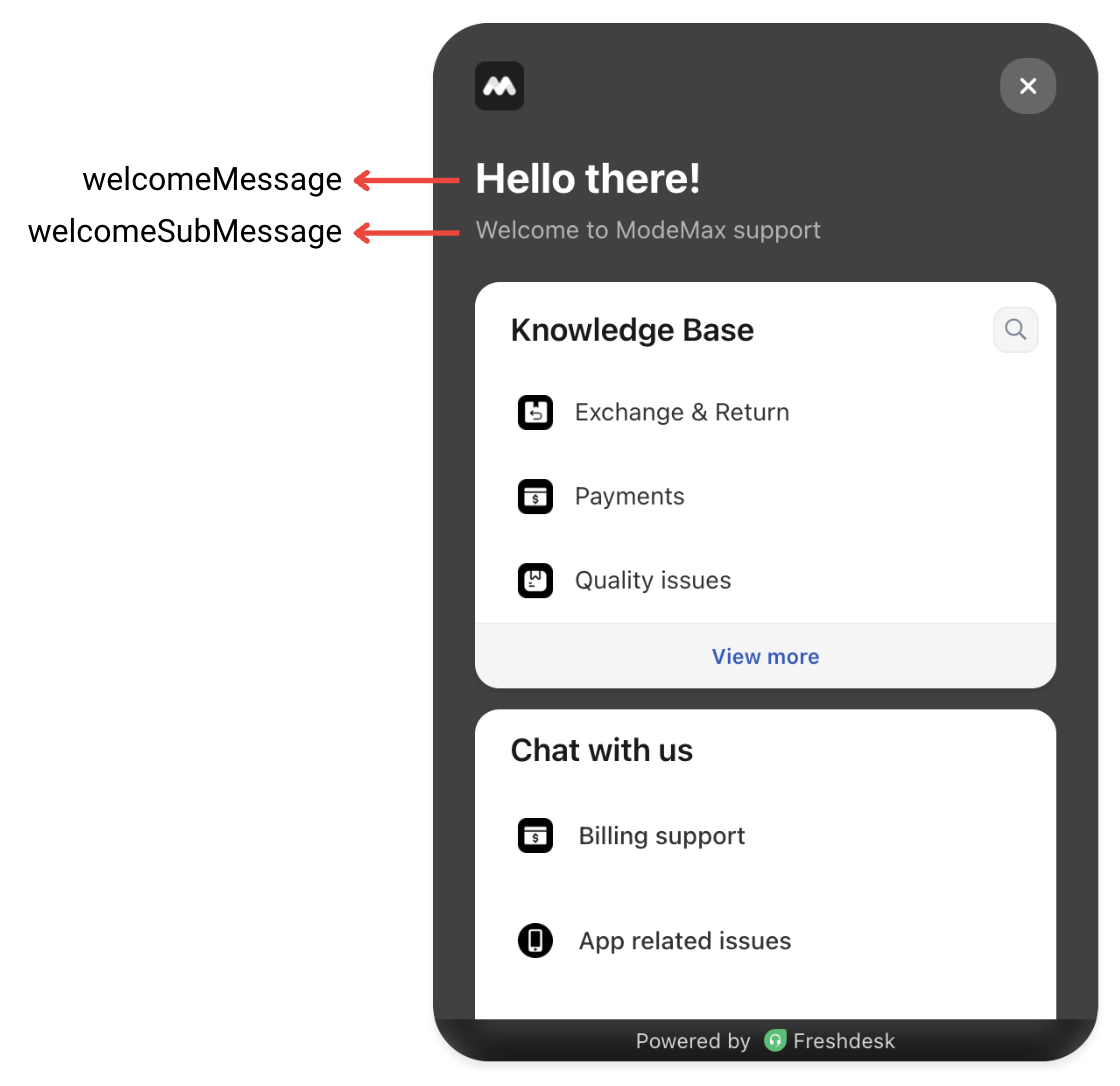
1 2 3 4 5 6 7 8 9 10 11 12 13 14 15 16 17 | <script> function initFreshdesk() { window.fdWidget.init({ host: 'your_host_here', token: 'your_token_here', widgetId: 'your_widget_id_here', config: { content: { welcomeMessage: 'Hello there!', welcomeSubMessage: 'Welcome to ModeMax support' } } }); } function initialize(i,t){var e;i.getElementById(t)?initFreshdesk():((e=i.createElement("script")).id=t,e.async=!0,e.src="your_host_here/webchat/js/widget.js",e.onload=initFreshdesk,i.head.appendChild(e))}function initiateCall(){initialize(document,"Freshdesk-js-sdk")}window.addEventListener?window.addEventListener("load",initiateCall,!1):window.attachEvent("load",initiateCall,!1); </script> |
Widget sections (Live Chat & Knowledge Base)
Various strings on the widget's sections (Live Chat & Knowledge Base) can be customized via script to support localisation of the widget based on the user's language.
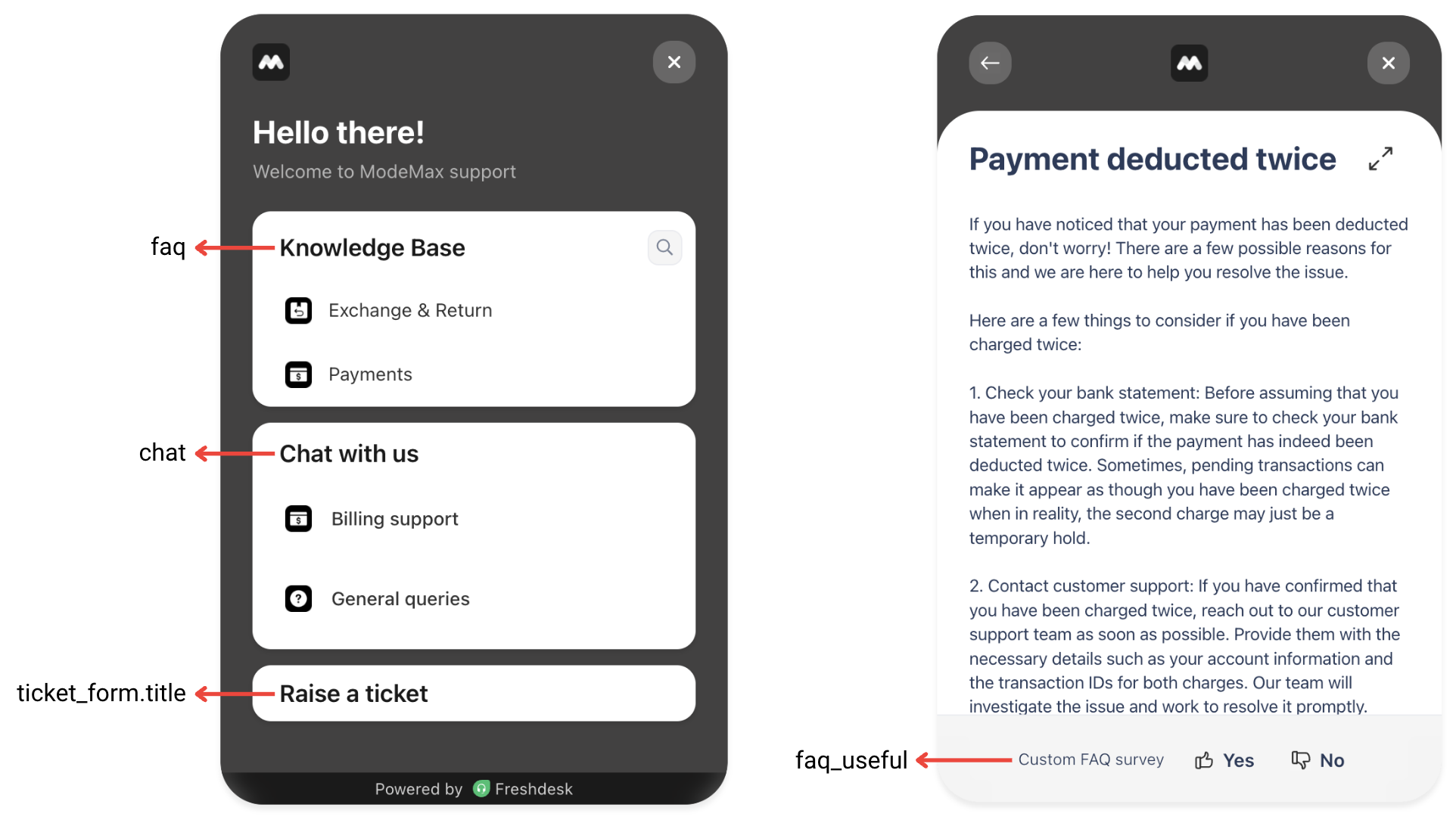
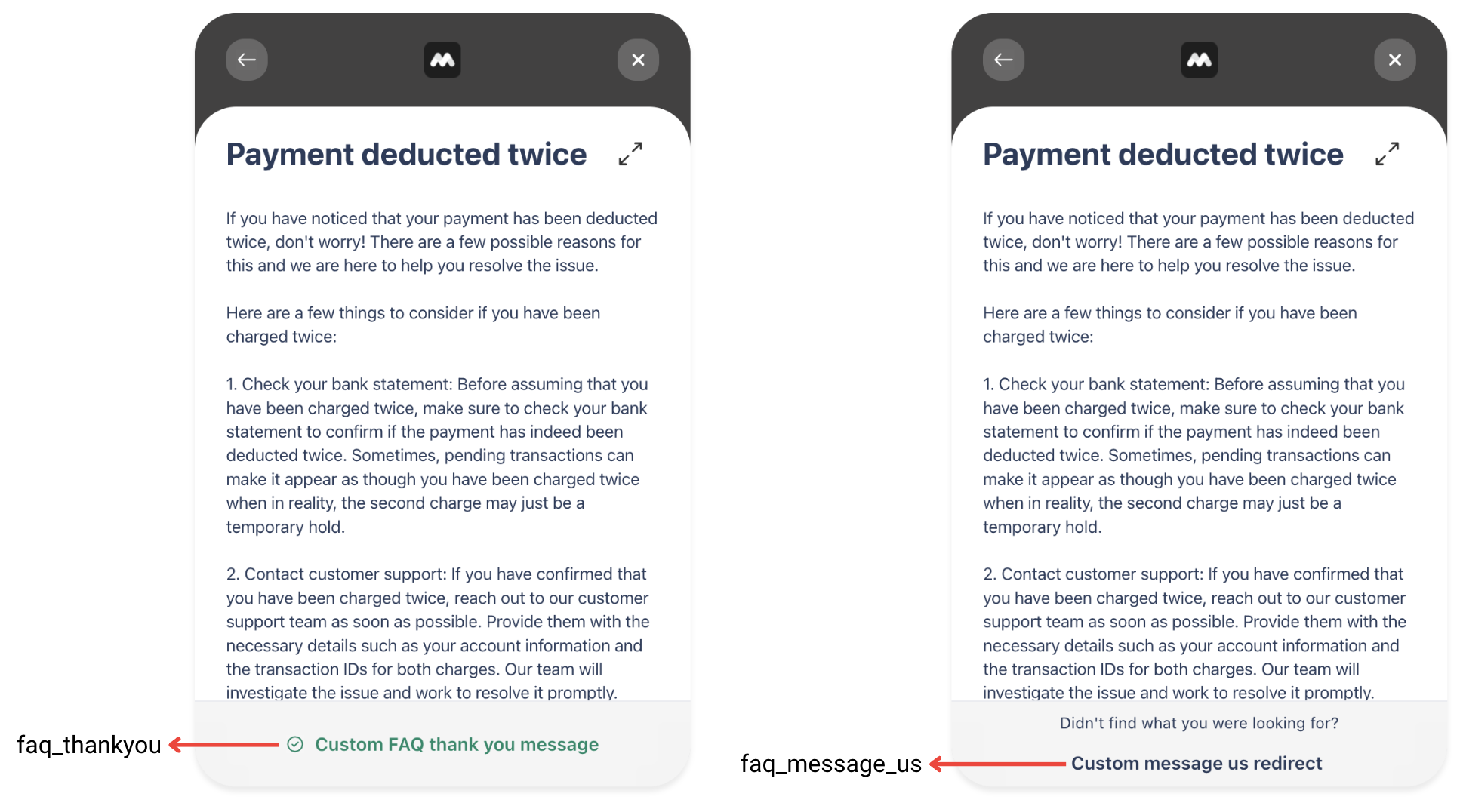
- Knowledge base section title
- Knowledge base search field placeholder
- No solution articles found message
- Solution article feedback survey
- Solution article feedback positive response message
- Solution article feedback negative response CTA
- Live Chat section title
- Live Chat reply editor placeholder
- Web Forms section title
- Web Forms list page title
- Web Forms submit button
- Web Forms submission acknowledgement message
- Privacy policy message body, CTA copy, URL
1 2 3 4 5 6 7 8 9 10 11 12 13 14 15 16 17 18 19 20 21 22 23 24 25 26 27 28 29 30 31 32 33 34 35 36 37 38 39 40 41 42 43 | <script> function initFreshdesk() { window.fdWidget.init({ host: 'your_host_here', token: 'your_token_here', widgetId: 'your_widget_id_here', config: { content: { headers: { channel_response: { offline: 'custom offline', }, chat: 'chat with us custom', faq: 'Faq Text', faq_message_us: 'Custom message us', faq_not_available: 'custom no articles found', faq_search_not_available: 'custom no articles found for the query', faq_thankyou: 'custom FAQ Thank you', faq_useful: 'custom FAQ useful', faq_not_useful: 'custom FAQ not useful', ticket_form: { title: 'ticket form title', list_title: 'ticket form list title', submit_btn_title: 'submit button title', confirmation_message: 'confirmation message', }, }, placeholders: { reply_field: 'custom reply', search_field: 'custom search field', }, privacyPolicySetting: { privacyPolicyMessage: 'Privacy Policy Message', privacyPolicyLinkText: 'Privacy Policy Link Text', privacyPolicyLink: 'https://privacy-policy.com', }, }, }, }); } function initialize(i,t){var e;i.getElementById(t)?initFreshdesk():((e=i.createElement("script")).id=t,e.async=!0,e.src="your_host_here/webchat/js/widget.js",e.onload=initFreshdesk,i.head.appendChild(e))}function initiateCall(){initialize(document,"Freshdesk-js-sdk")}window.addEventListener?window.addEventListener("load",initiateCall,!1):window.attachEvent("load",initiateCall,!1); </script> |
Customizing the business profile name and avatar
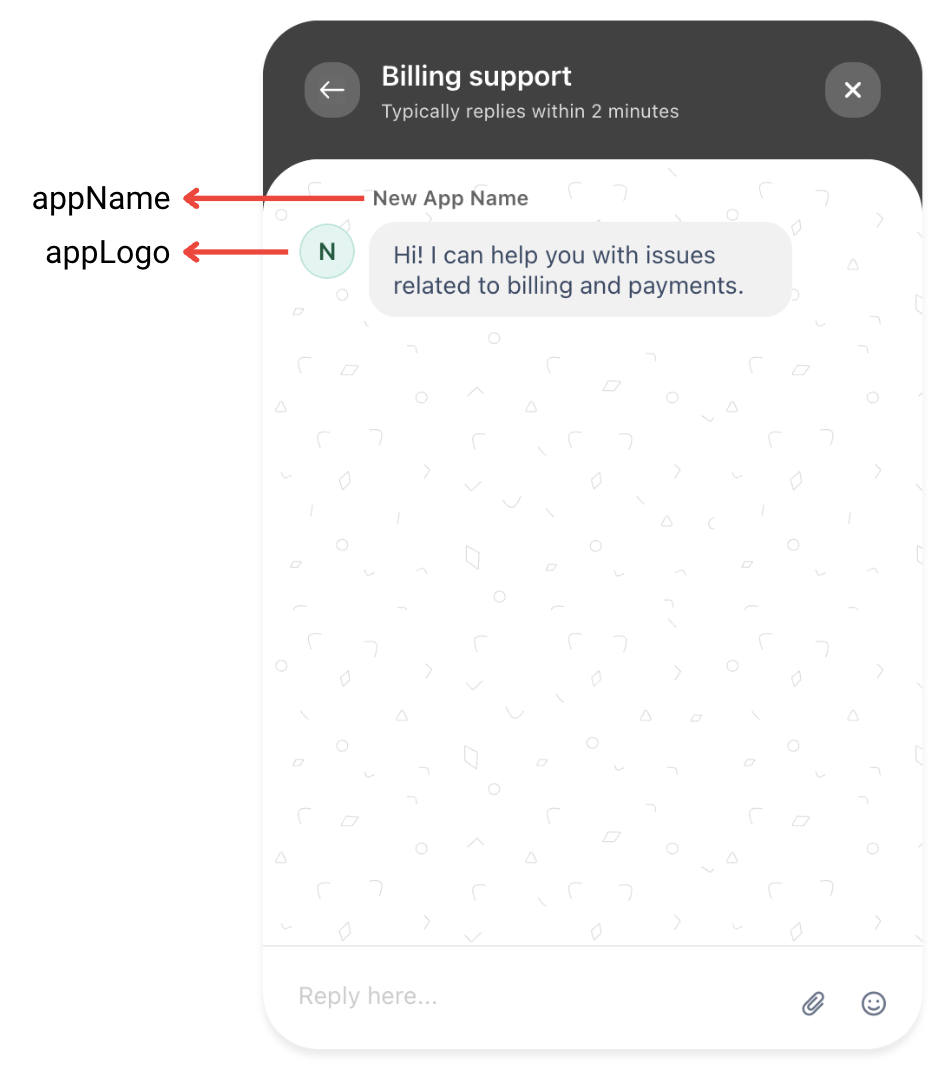
1 2 3 4 5 6 7 8 9 10 11 12 13 14 15 16 17 18 | <script> function initFreshdesk() { window.fdWidget.init({ host: 'your_host_here', token: 'your_token_here', widgetId: 'your_widget_id_here', config: { headerProperty:{ //If you have multiple sites you can use the appName and appLogo to overwrite the values. appName: 'New App Name', appLogo: 'https://d1qb2nb5cznatu.cloudfront.net/startups/i/2473-2c38490d8e4c91660d86ff54ba5391ea-medium_jpg.jpg?buster=1518574527', } } }); } function initialize(i,t){var e;i.getElementById(t)?initFreshdesk():((e=i.createElement("script")).id=t,e.async=!0,e.src="your_host_here/webchat/js/widget.js",e.onload=initFreshdesk,i.head.appendChild(e))}function initiateCall(){initialize(document,"Freshdesk-js-sdk")}window.addEventListener?window.addEventListener("load",initiateCall,!1):window.attachEvent("load",initiateCall,!1); </script> |
Setting user and ticket properties from the widget
On ticket creation
When a ticket is created through the Freshdesk Web Chat Widget—whether it is a live chat ticket or a web form ticket—you can attach both user properties and ticket properties programmatically. These properties help you enrich the ticket with contextual information, allowing your support team to better understand the user, their actions, and the environment from which the ticket was created.
- User properties – Details about the customer (plan, account type, signup date, etc.)
- Ticket properties – Metadata specific to the issue or event (page URL, priority, issue category, etc.)
1 2 3 4 5 6 7 8 9 10 11 12 13 14 15 16 17 | <script> function initFreshdesk() { window.fdWidget.init({ host: 'your_host_here', token: 'your_token_here', widgetId: 'your_widget_id_here', ticketProperties: { subject: 'Product Enquiry', priority: 4, type: 'Question', cf_project: 'Red', // Custom fields have cf prefix }, }); } function initialize(i,t){var e;i.getElementById(t)?initFreshdesk():((e=i.createElement("script")).id=t,e.async=!0,e.src="https://your_host_here/webchat/js/widget.js",e.onload=initFreshdesk,i.head.appendChild(e))}function initiateCall(){initialize(document,"Freshdesk-js-sdk")}window.addEventListener?window.addEventListener("load",initiateCall,!1):window.attachEvent("load",initiateCall,!1); </script> |
Below is a sample snippet showing how to set user properties during creation:
1 2 3 4 5 6 7 8 9 10 11 12 13 14 15 16 17 18 19 20 21 22 23 | <script> function initFreshdesk() { window.fdWidget.init({ host: 'your_host_here', token: 'your_token_here', widgetId: 'your_widget_id_here', contactProperties: { email: 'user@example.com', name: 'John Doe', mobile: '1234567890', phone: '123456', job_title: 'Software Engineer', address: 'City, Country', unique_external_id: '1234567890', language: 'en', state: 'State', // Custom field pincode: 123456, // Custom field }, }); } function initialize(i,t){var e;i.getElementById(t)?initFreshdesk():((e=i.createElement("script")).id=t,e.async=!0,e.src="https://your_host_here/webchat/js/widget.js",e.onload=initFreshdesk,i.head.appendChild(e))}function initiateCall(){initialize(document,"Freshdesk-js-sdk")}window.addEventListener?window.addEventListener("load",initiateCall,!1):window.attachEvent("load",initiateCall,!1); </script> |
On ticket updation
When an existing ticket is updated through the Freshdesk Web Chat Widget—for example, when a user sends a new message, responds to an agent, or interacts with the widget—you can programmatically update both user properties and ticket properties at that moment.
- The ticket always contains the latest context
- Automations, workflows, and reports operate on real-time data
- Agents get updated information as the conversation evolves
- User properties – if user information changes or becomes available later
- Ticket properties – to reflect changes during the conversation (e.g., updated page URL, interaction type, or new issue attributes)
1 2 3 4 5 6 7 8 9 10 11 12 13 14 15 16 17 18 19 20 21 22 23 | <script> function initFreshdesk() { window.fdWidget.init({ host: 'your_host_here', token: 'your_token_here', widgetId: 'your_widget_id_here', config: { faqPopupView: true } }); window.fdWidget.on("message:sent", function(data) { const userMessage = data.message?.bodyContents?.[0]?.data?.content; if(userMessage === "payment"){ window.fdWidget.ticket.setProperties({ priority: 3 // 4:Urgent 3:High 2:Medium 1:Low }); } }); } function initialize(i,t){var e;i.getElementById(t)?initFreshdesk():((e=i.createElement("script")).id=t,e.async=!0,e.src="https://your_host_here/webchat/js/widget.js",e.onload=initFreshdesk,i.head.appendChild(e))}function initiateCall(){initialize(document,"Freshdesk-js-sdk")}window.addEventListener?window.addEventListener("load",initiateCall,!1):window.attachEvent("load",initiateCall,!1); </script> |
Loading the widget in full-screen mode
The Freshdesk Web Chat Widget can be launched in full-screen mode to provide users with a larger, distraction-free interface. This is especially useful on mobile devices or when you want the chat experience to function more like an embedded support console.
To enable full-screen mode, set the fullscreen flag to true in the widget configuration as shown below:
1 2 3 4 5 6 7 8 9 10 11 12 13 14 | <script> function initFreshdesk() { window.fdWidget.init({ host: 'your_host_here', token: 'your_token_here', widgetId: 'your_widget_id_here', config: { fullscreen: true, }, }); } function initialize(i,t){var e;i.getElementById(t)?initFreshdesk():((e=i.createElement("script")).id=t,e.async=!0,e.src="your_host_here/webchat/js/widget.js",e.onload=initFreshdesk,i.head.appendChild(e))}function initiateCall(){initialize(document,"Freshdesk-js-sdk")}window.addEventListener?window.addEventListener("load",initiateCall,!1):window.attachEvent("load",initiateCall,!1); </script> |
Hiding the widget on certain pages of the website
You may want to hide the default web chat launcher on certain pages—such as checkout, payment confirmation, or custom support flows—and instead trigger the widget through your own CTA (button, link, menu item, etc.).
You can hide the launcher using the hideChatButton flag and then programmatically open the widget from any UI element on the page.
1 2 3 4 5 6 7 8 9 10 11 12 13 14 15 16 17 18 19 20 21 22 23 24 25 26 27 28 29 30 | <!-- Custom CTA to open the chat --> <Button onClick="openChat()">Open Chat</Button> <script> function initFreshdesk() { window.fdWidget.init({ host: 'your_host_here', token: 'your_token_here', widgetId: 'your_widget_id_here', // Hide the default launcher config: { headerProperty: { hideChatButton: true, } } }); } // Function that opens the widget when user clicks the CTA function openChat() { if (window.fdWidget && typeof window.fdWidget.open === 'function') { window.fdWidget.open(); } else { console.error('Freshdesk widget not loaded yet'); } } // Loader script for the widget function initialize(i,t){var e;i.getElementById(t)?initFreshdesk():((e=i.createElement("script")).id=t,e.async=!0,e.src="your_host_here/webchat/js/widget.js",e.onload=initFreshdesk,i.head.appendChild(e))}function initiateCall(){initialize(document,"Freshdesk-js-sdk")}window.addEventListener?window.addEventListener("load",initiateCall,!1):window.attachEvent("load",initiateCall,!1); </script> |
Hiding agent details on widget UI
By default, the web chat widget displays agent information such as the agent's name and designation, when the conversation begins.
If you prefer a more neutral or brand-centric experience, where the end user does not see any agent-specific information, you can hide these details through widget configuration.
1 2 3 4 5 6 7 8 9 10 11 12 13 14 15 16 17 18 | <script> function initFreshdesk() { window.fdWidget.init({ host: 'your_host_here', token: 'your_token_here', widgetId: 'your_widget_id_here', "config": { "agent": { "hideBio": true, "hideName": true, "hidePic": true }, } }); } function initialize(i,t){var e;i.getElementById(t)?initFreshdesk():((e=i.createElement("script")).id=t,e.async=!0,e.src="your_host_here/webchat/js/widget.js",e.onload=initFreshdesk,i.head.appendChild(e))}function initiateCall(){initialize(document,"Freshdesk-js-sdk")}window.addEventListener?window.addEventListener("load",initiateCall,!1):window.attachEvent("load",initiateCall,!1); </script> |
Showing FAQs as Fullscreen Popups
The Freshdesk Web Chat Widget allows you to display FAQ content in a fullscreen popup view, giving users more space to read articles, follow instructions, or browse through categories. This provides an app-like reading experience.
1 2 3 4 5 6 7 8 9 10 11 12 13 14 | <script> function initFreshdesk() { window.fdWidget.init({ host: 'your_host_here', token: 'your_token_here', widgetId: 'your_widget_id_here', config: { faqPopupView: true } }); } function initialize(i,t){var e;i.getElementById(t)?initFreshdesk():((e=i.createElement("script")).id=t,e.async=!0,e.src="https://your_host_here/webchat/js/widget.js",e.onload=initFreshdesk,i.head.appendChild(e))}function initiateCall(){initialize(document,"Freshdesk-js-sdk")}window.addEventListener?window.addEventListener("load",initiateCall,!1):window.attachEvent("load",initiateCall,!1); </script> |